Local model
The desktop uses the backend you select in Playground, such as an installed Ollama model. Your desktop conversation has its own history.
Keep running: the local Agent Avatar server and your chosen model runtime.
Start standalone Open Playground
AGENT AVATAR / DESKTOP
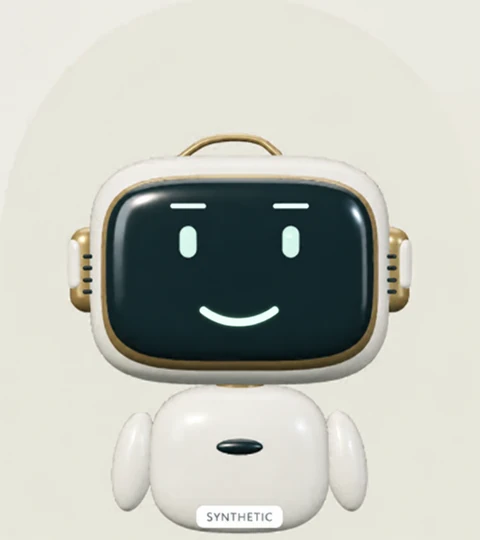
A floating face for your conversations. Move it beside your work, type a message, or talk with your chosen assistant.
MCP is optional. Use your Playground model on its own, or connect an existing agent through MCP.
Room to talk.
Space to focus.
The current Apple Silicon preview includes the latest fixes and the S-with-orbit app icon. Intel Mac, Windows and Linux downloads stay unavailable until their updated builds are verified. The app includes its runtime and licences. Models are configured separately. View preview availability.
01 / CHOOSE YOUR MODE
The desktop uses the backend you select in Playground, such as an installed Ollama model. Your desktop conversation has its own history.
Keep running: the local Agent Avatar server and your chosen model runtime.
Start standaloneYour existing agent application supplies the replies through the desktop MCP bridge. It receives only messages you explicitly send to it.
Keep running: the agent host and its MCP connection. The local server provides shared settings and local speech services.
Connect an agentThe desktop is an interface, not an AI model. It does not download model weights or automatically read another application's chats. Choose Settings → Chat → Talk with to change modes when an agent is attached. A standalone window has no connected agent.
02 / WHAT YOU NEED
These are development previews. The current macOS preview passed packaged checks on Apple Silicon. The Intel preview has the current icon; runtime verification is pending. Updated Linux packages and native desktop verification are pending. Windows x64 and ARM64 require updated installers and verification before publication.
03 / DOWNLOAD & INSTALL
Download the verified Apple Silicon development preview below. Other platforms remain unavailable while their current builds are qualified.
Version 0.1.15 · Apple M-series Macs
Download for Apple SiliconCurrent build and native verification pending
.exe installer · Intel / AMD PCs
.exe installer · ARM-based Windows PCs
Updated S-with-orbit build pending
Updated S-with-orbit build pending
Preview limits: Mac builds are ad-hoc signed and not notarized. Linux builds are experimental: package checks passed, but native desktop operation is unverified. Windows x64 and ARM64 need updated installers and native verification before download links can be enabled. Automatic updates are not configured.
04 / OPTIONAL MCP CONNECTION
MCP connects the companion to an agent you already use. It is optional: a local model can supply replies on its own.
In the desktop preview, the connected agent opens its own companion window. Choose Settings → Chat → Talk with → Connected agent (MCP) to use it. Messages wait until the agent reads and answers them; keep that agent session active.
Open Playground from the installed app, then use its connection guide to get the settings for your computer. Keep Agent Avatar running while the host connects. External agent compatibility is still being evaluated.
05 / ADD A VOICE
Open Settings → Voice, select an installed voice and speaker, then choose Test voice. Hear replies is on by default when a supported voice is available; you can turn it off. Testing playback does not start the microphone. Installed device voices are offered when supported by your system. Optional registered voice models must already be installed.
Open Settings → Microphone, choose an input and run Test microphone. The level meter does not transcribe or send a message. For transcription, configure a compatible local English speech service in Settings. The desktop previews do not include a speech-recognition model.
Press Talk and allow microphone access when asked. The flow is: your phrase → transcription → your chosen model or connected agent → spoken reply. It then listens again while Talk remains active.
Recognition currently targets English. Device, accent and background-noise accuracy still need physical testing. You can always use typed chat.
06 / EVERYDAY CONTROLS
If a tray cannot be created, the app keeps the window open and explains how to quit. Reset position brings an off-screen companion back. Each MCP connection owns its own window; closing that connection closes its companion. Repeated standalone launches reopen the existing standalone window.
07 / SAVE & RETURN
Saving is off by default. Enable Settings → Chat → Remember on this computer to save shared preferences and up to 40 messages from the local desktop conversation. The browser and desktop local histories stay separate.
Hiding retains the running session. Quitting clears memory; only opted-in saved local data can be resumed. Each installed MCP connection owns its own local session and stays usable after app restarts. Saved preferences are reused only when Remember is enabled; unsaved settings are session-specific. Connected-agent history belongs to the agent application and is excluded from this local save. Turn Remember off or use Delete saved data to remove saved data for both local interfaces.
08 / TROUBLESHOOTING
The Apple Silicon preview is available. Review Windows, Mac and experimental Linux options in Download & install. Windows x64 and ARM64 are listed with updated builds pending.
Start your model runtime, select an installed model in Playground → Models, and use Test assistant reply. Check that Talk with is set to Local model. Failed typed messages offer Edit failed message; press Send to retry.
Test the microphone and selected voice separately. Check system permissions, the input device, local speech service and installed English voices. Waiting for Send needs transcript review. You can always continue with text.
In the desktop preview, check the tray first, then use Reset position. Local conversation history returns only when Remember was enabled and you explicitly Resume. Connected-agent history stays in that agent application.
09 / PRIVACY & CURRENT LIMITS
The avatar renders locally. Model requests go to the backend you configure; an external agent follows its own provider and data policies. Talk sends a bounded audio clip to the configured loopback transcription service, which has its own recording policy. There is no automatic cloud transcription fallback.
Optional history is saved under your computer account. Audio, API credentials and connected-agent chat history are excluded. Anyone with access to your account may read saved local conversations. Microphone-device selection resets when the desktop restarts.
This preview does not install model weights, read entire chats from other apps, start at login or replace a native pet system. Developer ID signing/notarization, native Linux desktop operation, external-agent compatibility and physical speech quality remain unqualified.